Markdown Editor
Write Markdown and watch it turn into clean HTML, live, right in your browser.
This Markdown editor gives you a split view: type Markdown on the left and see it rendered as HTML on the right, updating as you write. When the preview looks right, you can copy the HTML or download it as a file. Everything happens in your browser, so whatever you write never leaves your device.
Markdown lets you format text with simple, readable symbols instead of fiddly buttons. A hash makes a heading, asterisks make text bold or italic, and a dash starts a list. It stays out of your way while you write, then converts cleanly into the HTML that web pages and countless tools understand.
The editor supports the everyday building blocks you actually use: headings, bold and italic, ordered and unordered lists, links, images, blockquotes, and code. Your input is escaped as it is rendered, so the preview is safe and shows your content rather than running it.
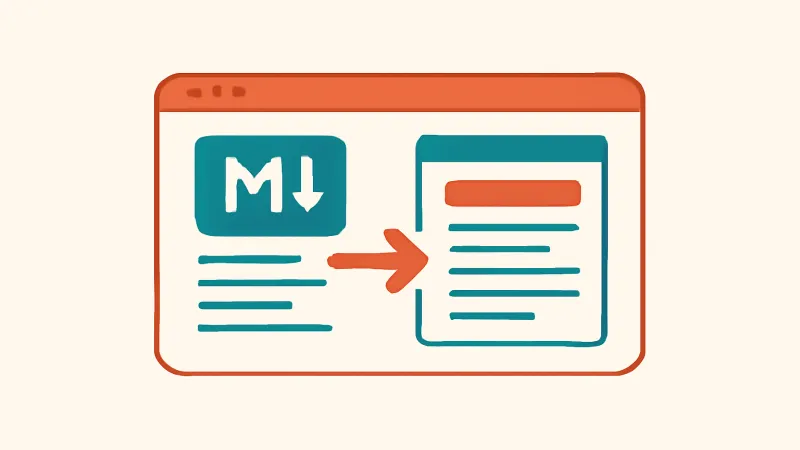
How to use the Markdown editor
- Type or paste your Markdown into the editor on the left.
- Watch the HTML preview on the right update as you write.
- Use Markdown syntax for headings, bold, italic, lists, links, images, and code.
- Copy the generated HTML to your clipboard when you are happy with it.
- Or download the HTML as a file to use anywhere you need it.
What the editor does
It converts Markdown to HTML in real time and lets you take that HTML away, either copied to the clipboard or saved as a file. The live preview means you are never guessing how your formatting will look; you see the finished result beside your source as you type.
That immediate feedback loop is the point. Instead of writing, exporting, and checking in a separate step, you write and verify at the same time, catching a broken link or a mis-nested list the moment it appears.
Markdown syntax it supports
The common elements are all here. Use hashes for headings, wrap text in asterisks or underscores for bold and italic, and start lines with dashes or numbers for bulleted and numbered lists. Links and images use the familiar bracket-and-parenthesis syntax.
You can also add blockquotes with a leading angle bracket and include code, both inline with backticks and as fenced blocks. These cover the formatting most documents, README files, and posts actually need without overwhelming you with rarely used extensions.
Why the output is safe
Your input is escaped when it is rendered, which means any HTML-like characters in your text are shown as plain text rather than executed as markup. The preview therefore displays what you wrote instead of running arbitrary code hidden inside it.
That escaping is a deliberate safety choice. It keeps the tool predictable and stops surprising behaviour if you paste in content from elsewhere, while still rendering all the standard Markdown formatting correctly.
Great for READMEs and notes
Markdown is the native language of README files on code hosting sites, so drafting one here and checking the preview is a natural fit. You can get the headings, code blocks, and lists looking right before you paste the Markdown into your repository.
It is just as good for blog drafts, documentation, and quick notes. Because the output is plain HTML, you can drop it into a website, an email template, or a content management system that accepts HTML, without reformatting everything by hand.
Copy or download the HTML
When your preview looks right, you have two ways to take the result with you. Copying puts the generated HTML on your clipboard so you can paste it straight into wherever you are working.
Downloading saves the HTML as a file instead, which is handy when you want to keep it, open it in a browser, or hand it to someone else. Both options give you the same clean markup produced from your Markdown.
Everything stays local
The conversion runs entirely in your browser, so your writing is never uploaded. That matters for drafts you are not ready to publish, internal documentation, or notes that mention things you would rather keep off other people's servers.
There is no account and no cloud save. Your text lives only in the open tab, so copy or download anything you want to keep before you close it. The upside of that design is genuine privacy; the trade-off is that the tool does not store your work for next time.
Honest limitations
This is a focused editor for the core Markdown features, not a full publishing suite. Advanced extras that some Markdown dialects add, such as tables in every variant, footnotes, or task-list checkboxes, may not all be supported, so check the preview if you rely on them.
The generated HTML is clean and standard rather than styled for a particular site. You get the structure and formatting; matching it to a specific design's fonts and colours is done with your own CSS once the HTML is in place.
Frequently asked questions
Is my writing uploaded anywhere?
No. The Markdown-to-HTML conversion happens entirely in your browser, so your text never leaves your device. That makes it safe for private drafts, internal docs, and notes you are not ready to share.
What Markdown features are supported?
The common ones: headings, bold and italic, ordered and unordered lists, links, images, blockquotes, and code both inline and in fenced blocks. These cover what most READMEs, posts, and notes actually need.
Can I get the HTML out of the editor?
Yes. Once the preview looks right you can copy the generated HTML to your clipboard or download it as a file. Both give you the same clean markup produced from your Markdown.
Is the preview safe if I paste content in?
Yes. Your input is escaped as it is rendered, so HTML-like characters are shown as text rather than executed. The preview displays what you wrote instead of running any code hidden inside it.
Does it save my work between visits?
No. There is no account or cloud save; your text lives only in the open tab. Copy or download anything you want to keep before closing the page. This keeps the tool private but not persistent.
Will the HTML match my website's style?
The output is clean, standard HTML with structure and formatting but no site-specific styling. Apply your own CSS once the HTML is in place to match a particular design's fonts and colours.